technology -->

2019 ഓഗസ്റ്റ് 17, ശനിയാഴ്‌ച

What is Gmail confidential mode: your emails much more secure

gmail confidential mode

Do you want your emails to have more privacy? Find out all about the confidential mode in Gmail and send more private emails.


Privacy is something that should concern us all. Therefore, it should be protected in all possible ways. It is well known that messaging or email applications do not usually stand out for their privacy; although there were many changes in these past months due to the latest scandals. This is the case of Gmail with its confidential mode
.
Gmail is the most used email application, thanks in part to come installed on Android by default. It is common for you to send emails using this application on the phone. sometimes there are private details or sensitive information we need to send. In such cases, we can use the confidential mode.

What is confidential mode?

gmail confidential mode

Confidential mode is a function in Gmail that guarantees maximum privacy when sending an email.
It is an ideal method to send sensitive or private information to another person so that only that person has the ability to open that email. It is a great advantage that this function offers us.

Sending an email using this confidential mode has clear limitations. The person who receives it will not be able to download the attached files in the message, they can use the preview (if the file is compatible). In addition, it is not possible to copy the content of that message; thus preventing said information from leaving the mail. Even making screenshots is impossible. The idea is to keep this message confidential at all times.


In addition, the confidential mode in Gmail gives us the possibility to put a password to the messages. This helps that only the person to whom we have sent them can have access. It also includes the possibility of having that email self-destruct: it is possible to set an expiration date so that the person who receives it has a limited time to read it. These two possibilities are optional but add perfectly complement this confidential mode.

How to use confidential mode in Gmail

gmail confidential mode
To make use of this confidential mode in the Gmail application you don't have to complicate your life much.  First, you have to compose the message, add attachments you want to send, if they exist, and enter the recipient's mail. When these steps have been completed, we will activate the confidential mode in the mail application. The method is:


  • Inside the email click on the three vertical dots in the upper right corner.
  • Click on the Confidential mode option.
  • Click on the Save button.
  • Send Message.


This is something simple, although we may want to use the most complete options that this confidential mode offers, such as setting a password or making this email go to self-destruct. In this case, they are in the third step of the previous process. When we press in the confidential mode in Gmail, we are allowed to configure how to use this mode in the application.
gmail confidential mode

Set expiration: This function allows us to choose when we want this email to be deleted automatically. There is a list of options, ranging from one day to five years, with various possibilities halfway between them. The one deemed appropriate will be used, although it is necessary to give the recipient time to read the message, especially without or using Gmail too often on the phone or on the computer

Require password: This is another step with which to determine the security and privacy of the email that is sent. By default, a password is not set with which to open said email. This is something we have to activate ourselves in the application. In this field, two options are given:

Standard: Users who receive this message in their account will be able to open it directly. At least as long as they have a Gmail account. If a different service is used, then they will receive in a separate email a password with which they can access confidential mail.

SMS Password: In this case, the recipient of the message will receive a password through an SMS. So we also have to know the person's phone number and enter it so they have access to the mail. If a phone number cannot be given, then it makes no sense to use this function.

How to open a confidential email

gmail confidential mode

In this case, we have shown how to write a confidential email in Gmail. It may also be the case that we are the recipients of such an email in our account. When the time comes we will have to open it, something that generates doubts among many users but that does not present major problems.


If it is an email that did not have a password, we can open it normally using the Gmail application on the phone. Although, when the date set by the creator of the email is passed, there is one thing, the email will be automatically deleted from our inbox. It will disappear without us having to do anything for it.

If the email you have sent us has a password, then we usually receive it by SMS . We will have, in addition to the mail, a text message with the password that we have to use. When we want to open that email, the first thing we will be asked for is to enter the password received. Without a password it will not be possible to open it.

2019 ഓഗസ്റ്റ് 14, ബുധനാഴ്‌ച

How to activate whatsapp fingerprint lock

whatsapp fingerprint lock, whatsapp beta tester

Do you want to add extra security to your WhatsApp? Now you can block it with the fingerprint if you install the latest beta. We will show you how to activate fingerprint lock on whatsapp.

It never hurts that an application used by hundreds of millions of users includes extra security when it comes to hiding their conversations from other people. This is what WhatsApp finally did after activating the fingerprint scanner in its Android application: if you have the latest beta installed, you can already protect your chats with your fingerprint. And it is much more practical than it seems.


The logical thing is that no one accesses your conversations if you block the phone because they should not know your password, but it does not have to be the only security measure: adding the fingerprint to your WhatsApp you can make sure that nobody else reads your private messages. It even allows you to get a fairly desired extra: the new setting can hide the content of WhatsApp messages in notifications. This way only you can read what they tell you through the messaging application.

How to protect your WhatsApp from any curious look? You just have to protect it with the fingerprint by following the following process.

Access the privacy settings of your WhatsApp to protect it with your fingerprints

whatsapp fingerprint lock, whatsapp beta tester

WhatsApp already included a double authentication system with a six-digit pin that you can configure, but does not jump every time the application is opened, so it does not prevent someone from reading your conversations if they already have access to the phone. With the fingerprint, there are no cracks.

To protect the chats with the footprint you need the latest beta update of WhatsApp. In case you do not have access to the beta you can sign up by following these steps. Or you can install the Apk with the fingerprint adjustment: just download it from Apk Mirror. After:


  • Access the settings of your WhatsApp by clicking on the three points in the upper right corner of the screen.
  • Enter the " Account " options , then "Privacy."
  • Scroll down to the " Fingerprint lock " option .
  • Now you just have to activate the option " Unlock with your fingerprint ". Confirm with the fingerprint registered on your phone.
  • You can choose three automatic locks: just close WhatsApp, after 1 minute after closing or after half an hour. You decide, but the first option is the safest. Also somewhat cumbersome since you will always have to put the mark to enter your conversations.
  • The last setting allows you to block the content of messages in notifications. If you don't want them to be read, activate it.


From the moment you set the fingerprint in your messaging application, nobody can read your messages if they don't ask you for permission to do so. Obviously, your mobile must have a fingerprint reader; In addition to having registered a fingerprint for access to the system.

conclusion


To get the latest WhatsApp beta updates you need to signup for whatsapp beta tester program.
unless you need to try the apk from other sites.

i hope you found this article helpful. if so would you consider sharing it with others?
if you have any queries please mention it in the comment box below.

2019 ഓഗസ്റ്റ് 1, വ്യാഴാഴ്‌ച

Telegram Desktop [ Review ]

telegram desktop

Do you know what Telegram Desktop is? you may know what is telegram but not heard about the desktop version. so today we are going to explain all about this desktop version of telegram application and how it can be used in your case.

Telegram has been crowned as one of the most popular application in Android It is one of the few, almost the only, able to stand up with WhatsApp in the field of instant messaging apps. but Most users using the smartphone version of the telegram don't know it has two versions.

Read: How to become Whatsapp Beta tester

What is Telegram Desktop


Telegram Desktop is simply the computer version of the application. It is synchronized with the user's account so that it is possible to send and receive messages in a normal way. in this way, it can be used on the computer. It is possible to use in all types of operating systems because there are versions for Windows, macOS, Linux 32 bit and Linux 64 bit are available. therefore, everyone can access telegram.

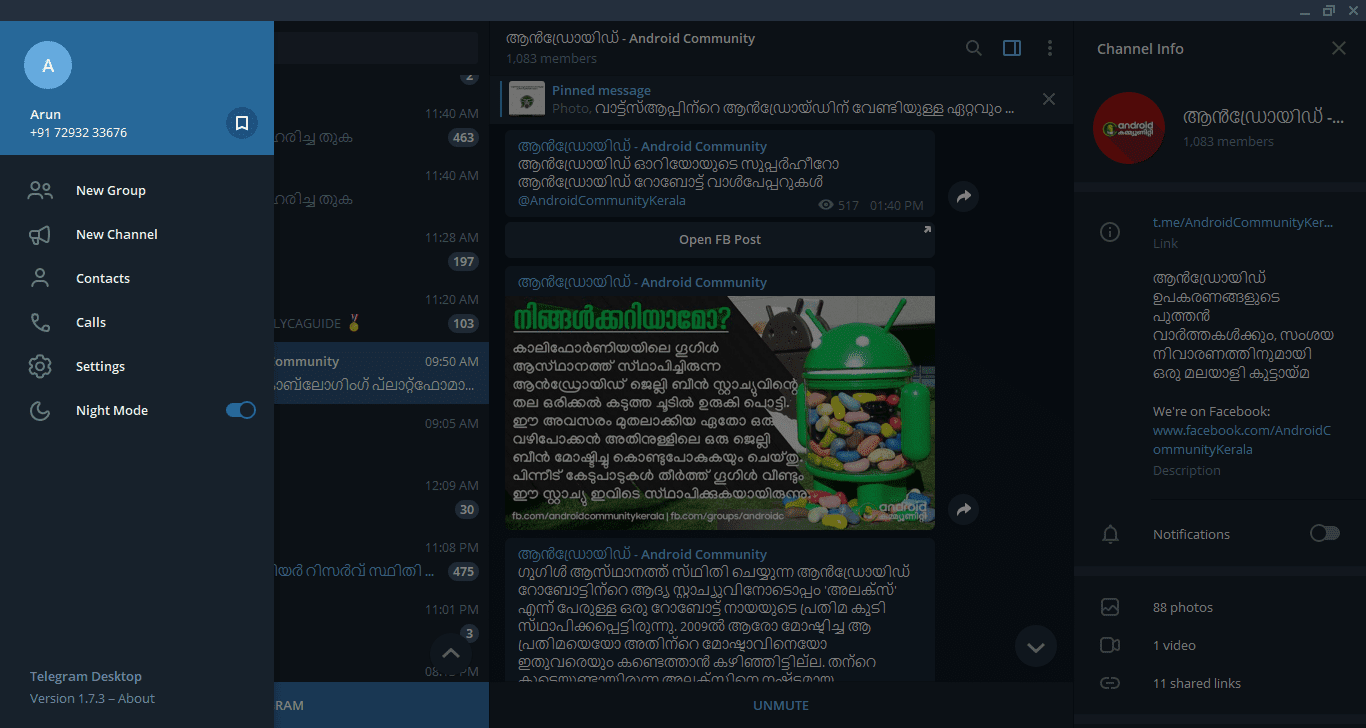
At the interface level, it does not present many differences with respect to the smartphone version of Telegram. On the left side, there is a column with all the chats that are open. Just click on one to put on the screen and send messages to another person. To access the menu, you must use the icon of the three horizontal stripes and then click on the desired option, such as entering the settings.

Therefore, it is a version that is very easy to use for all those who have Telegram on their smartphone. It will be synchronized with the account that is held on the smartphone at all times. This means that the messages received in either of the two versions will also be shown in the other. Even if the phone does not have an Internet connection at that time.

How to have Telegram Desktop

telegram desktop

Unlike the computer version of WhatsApp, which can only be used from the browser, Telegram Desktop is an application to download. Like any other application on the computer. While it is a light app, it takes up little space and does not affect the performance of the computer too much. To download it, you must enter the official website, From this link Telegram Desktop.

On the web you have to choose the version you want to download in each case, depending on the operating system. Then, you just have to wait for it to download and run the file that is downloaded. The usual steps when installing an application on the computer. When it is completed, you will be able to open Telegram Desktop on your computer.

How to synchronize the account


When opening the computer version, the first thing to ask is to enter the phone number. It must be the mobile number associated with the account on the smartphone. When this number has been entered, a code will be sent to the phone, which must be entered in Telegram Desktop. It is the measure used for this synchronization between the two.

So when the code has been entered and it is correct, the two versions of the application will be synchronized. After a few seconds, the chats that are in the application will appear on the computer screen. This means that it is now possible to use Telegram Desktop normally and all messages that are sent will also be shown in the smartphone version of the application.

In addition, it will be able to be used even if the account in the phone is not active at a certain time. That is, if the phone does not have an Internet connection at that time, you can use the desktop version normally. A good solution if you have finished mobile data on the phone or simply want to save on your consumption.

Dark mode in Telegram Desktop

telegram desktop

One of the star functions in Telegram Desktop is the presence of dark mode. More and more applications, both Android and Windows, make use of this feature. This desktop version also has it. In addition, the way to proceed with its activation is very simple.

Click on the icon of the three horizontal stripes in the upper left
Press the switch next to the dark mode

In this way, the interface of the application becomes a dark blue tone in its entirety. Both the background of the chats and the background of the interface in general. When you want to return to normal mode, you just have to turn off the switch again. So its use does not present any problem.

Send files


One of the great advantages of having Telegram on the computer and on the phone is that it becomes the perfect way to send files between the two devices. As many already know, the application allows you to send messages to yourself, in the chat called Saved messages. Since the two are synchronized, you can have access to this chat on both computer and Android.

Therefore, if you want to send photos, videos or any type of files between the two, it is possible to use Telegram. To do this, just select the files in question and send them to the conversation of Saved Messages. If it has been done from the phone, when accessing the chat on the computer, you only have to click on send file to save it. You are simply asked to choose a location on the computer for it.

In addition, the application allows you to send relatively large files. So it becomes a good alternative if you have to send a heavy file or many files at the same time. Its ease of use is the other great advantage it provides in this regard.

What is the advantage of using it on a desk in front of the telephone?


This is a field that can depend a lot on the personal choices and preferences of each user. In my personal case, I find it more comfortable to use the desktop version at the time of writing, because I find it more comfortable to write on the computer than on the phone. In addition, in the desktop version, you have on the right side the profile of each user with whom you speak. But you also have access to the multimedia files that have been shared in these conversations.

So, if you want to see the photos that a contact has sent at a specific time, just click on photos and all the photos will appear, divided according to the month in which they were sent. The same thing happens with videos or files in general. It makes it easy to access them, without having to be looking in the conversation.

conclusion

I hope you found this article helpful. If so would you consider sharing it with your friends?
If you have any doubts and queries, please mention it in the comment box below.


2019 ജനുവരി 24, വ്യാഴാഴ്‌ച

How to improve the performance of Chrome with many tabs

How to improve the performance of Chrome with many tabs


Improve Chrome Performance | It's no wonder that Google Chrome works slowly when we open too many tabs at a time. Today we will show you how to make it faster.

Internet evolves at the speed of light, an aspect that can be positive; however, it also causes things to become obsolete too quickly. This is the case of programs and websites, which go from world fame to absolute oblivion. In this sense, Internet Explorer has been dethroned, whose position is currently occupied by Google Chrome, the king of browsers.

As we know that most users use Google Chrome, today at Techfint we will show you a way to make it work faster. If you are one of those who opens 20 tabs at once, you will find it tremendously useful.

How to make Google Chrome go faster


Those of us who work with the Internet every day open a multitude of tabs in Google Chrome. Obviously, when there are two or three, nothing happens; but, when we exceed a dozen, our computer may start to slow down. This situation can negatively affect our work, since productivity is reduced.

The solution is found in the Chrome Web Store itself. We are talking about OneTab , an interesting extension that will save up to 95% of the memory used in the PC. This free extension has already been downloaded by almost 2 million users and has an average rating of 4.6 out of 5; a figure that reveals how useful it is.

How does OneTab work?


How to improve the performance of Chrome with many tabs


First, we 'll need to download OneTab from the Chrome extension store. Once installed, your icon will appear in the upper right corner of the browser, along with other extensions.
How to improve the performance of Chrome with many tabs


When you feel that the computer behaves worse due to the large number of open tabs, click on the OneTab icon. Once this action is done, all your open tabs will be closed; but do not worry!

OneTab will open a single tab in which all the tabs we have just closed will accumulate. All of them accompanied by their corresponding hyperlink. To return to any of them, just click on its title.
How to improve the performance of Chrome with many tabs

Thus, OneTab works as a tab organizer capable of ridding our computer of a 95% memory load. It is also possible to open all the tabs or delete them from the interface of the extension.

In the same way, we can order the tabs to our liking, we just have to drag with the mouse. Another interesting option is to create a web page from the list of tabs. Thus, we can share them easily with other people if necessary.


2019 ജനുവരി 18, വെള്ളിയാഴ്‌ച

This Bluetooth chip does not need a battery: it works with the energy it takes from the air

Wiliot has developed a Bluetooth chip that does not need a battery to work, capturing radio waves and converting them to energy.


One of the most common tricks to save battery on your smartphone is to turn off the Bluetooth connection if you are not using it; After all, the chip that manages that wireless communication needs energy. But what if it was not like that? What if we could implement Bluetooth anywhere without even adding a battery?


That is the idea that startup Wiliot wants to make reality; and has already taken giant steps in that direction, thanks in large part to the multi-million dollar investment that companies like Samsung or Amazon have made. The result is a functional prototype, a Bluetooth chip that does not need a battery


The Bluetooth chip that does not need a battery


Of course, then, how do you get the electric power necessary to function? The idea behind the project is that it does not take more energy, if we can just take the one that is already in the environment of any home or office. We refer to the radio waves that surround us, coming from Wi-Fi routers, Bluetooth devices or the telephone signal of our smartphone.

Actually, we are in two different parts. The key piece in a new chip, developed by Wiliot, is able to convert the radio waves it captures into electrical energy . An energy that then passes to an ARM processor with Bluetooth, which is the one that makes the connection and manages the sensors that connect it.


In this way, in a very small space we can add a Bluetooth connection to almost anything. It will be especially useful for Internet of Things devices, which will not need as much battery to operate. Its own creators imagine new utilities. As chips that store the user manual and that are always accessible even if we have run out of battery; or sensors that detect the temperature of a product and send a warning


The first units of Wiliot will be launched in 2019, facing a massive launch in 2020.

Microsoft to separate cortana from search bar in windows 10 Build 18317

The search for Windows without Cortana will be implemented in future versions of Windows 10, a grateful change for many users.

windows 10 update


The good thing that Windows no longer follows a fixed schedule of updates is that the system is always improving, responding to criticism from users. Before we had to wait for the "Service Packs" to get news; Now, Windows 10 receives improvements almost every six months.

The latest modification that Microsoft has announced is a good example of this; affects one of the most used functions of an operating system, the search. Normally, when we want to find a file, it's because we really need it; We do not want distractions or having to dodge functions we do not want. And yet, that's just what Microsoft did when it implemented Cortana.

The search for Windows without Cortana, finally


The personal assistant of Microsoft comes installed by default in Windows 10; and occupies the same position as the system search. That implies that, every time we want to look for a file, we also "wake up" Cortana; something more than a nuisance, since it can also affect performance.

Most people just want to use the search; especially on the desk, where personal assistants have not been able to take off, as in smartphones. That's why Microsoft has decided to separate the search for Cortana; from the next versions of Windows 10, will be two separate functions and will be developed independently.


The latter is also important, because it will allow Microsoft to focus on the strengths of each functionality. It will allow developers to implement new features in Cortana, and improve Windows search without fear of "stepping on" each other.

Moreover, as you may recall, Microsoft is developing a new universal search engine ; will be the same for all its products, from Office 365 to Bing, passing, of course, by Windows 10. This division will improve the Windows search with new features.

But the first result is that in future versions of Windows, Cortana will appear as an independent icon in the bar. For the time being, the change has been applied to Windows Insider users, the Windows 10 trial version, and has not yet a definite release date.

2018 നവംബർ 2, വെള്ളിയാഴ്‌ച

Telegram proves to be better than WhatsApp by creating best sticker packs for WhatsApp

whatsapp stickers by telegram


Whatsapp stickers from Telegram | Telegram is the main rival of WhatsApp, but it has shown class and elegance when creating stickers packs for WhatsApp that were in Telegram.

A few days ago we told you the news that WhatsApp finally added the stickers in your messaging application. In its endless struggle, Telegram has decided to teach WhatsApp a lesson by launching its own sticker pack on WhatsApp.


WhatsApp and its curious approach to stickers


The discussion about whether WhatsApp or Telegram is better has been around since Telegram exists. For many, it is a more innovative platform, which implements new functions before anyone else, while WhatsApp is only dedicated to copy. In the same way, there is little use of such technology if at the end you want to talk with neither use nor plan to use Telegram.


Personally, I use both applications, and what I miss most in WhatsApp are the stickers. I am addicted to expressing my answers or emotions with stickers. It's not something that Telegram invented, but Telegram is the only messaging application I use that has them

The arrival of stickers to WhatsApp is being progressive. After months of rumors, they have arrived and they are here to stay. The implementation of these stickers packs is a bit strange since you have to download the stickers packs as if they were applications in Google Play.

The best stickers packs for WhatsApp are from Telegram

whatsapp stickers by telegram web


Telegram has decided to rekindle the war of messaging applications. Someone in Telegram has thought that if WhatsApp does not go to the stickers, it is the stickers that arrive to WhatsApp.

If we go to the developer profile of Telegram X, an official alternative version of Telegram, we will find two new applications. They are pack of icons that we already had in Telegram, of Telegram, but for WhatsApp. There are two packages:


Has Telegram been delivered to WhatsApp? Well, it seems that no, and that is that the stickers packs include Telegram advertising. At the end of the packs, the application recommends that we download Telegram to have the best stickers experience.

Whether you're a fan or not of Telegram, it's a very elegant move to promote your application, just as they carry part of the experience we like about Telegram to its main rival.


Also read

∎   How to download more stickers for whatsapp
∎   How to become whatsapp beta tester
∎   Ads on whatsapp for 2019 confirmed-by-facebook

2018 ഒക്‌ടോബർ 30, ചൊവ്വാഴ്ച

Google Photos Live Album Feature has a crazy photo upload limit

You may dont know what limit is in Google Photos, and you found that the photos stop uploading to the cloud, Actually ,what is happening?

Google Photos Live Album Feature has a crazy photo upload limit


Google Photos has made life much easier when organizing and backing up our photos. In fact, this process is already so simplified that it is easy to forget that it is happening in the background.

Just by taking a picture with our mobile, Google Photos will automatically upload it to the cloud and catalog it into an album; Then we can find our photos by several factors, such as the date or place where they were taken. If you like to take pictures for anything you do, it is one of the best services.

Photos are not automatically uploaded to Google Photos, what happens?


However, it is precisely if you are constantly taking pictures that you may encounter a problem; one that will not affect most people, but is important despite everything: the photos stop uploading to Google Photos.

In effect, we take photos, but the album stops updating and receiving new images. Which is a problem, especially if you are in the middle of a special moment or a session; the photos may be kept on your device, but you will lose backup copies and additional features of Google Photos.


More people have suffered this problem than it seems. And in all cases, the problem comes when you upload 10,000 photos. Yes, it seems high enough that we do not have to worry, but think about it better; If each photo you make is automatically uploaded to the cloud, it is very likely that you will reach that figure very soon.

What is the limit in Google Photos


Finally, the official Google Photos account has confirmed what was suspected: there is a limit to the number of photos we can upload to Google Photos. That limit is 10,000 photographs or videos in private albums; When we reach that limit, we stop uploading photos until we delete some of the album.

Keep in mind that the limit is higher in shared albums: 20,000 photos or videos. Therefore, you may want to create a shared album as a precaution; this way you will have more space and it will take twice as long to reach the limit.

Of course, the reason is the logical one: space is not free, and Google Photos has already done enough free storage for our photos. But maybe there could be another alternative, such as deciding the type of photos we want to upload.

Conclusion

Now we know there is limit in google photos, The live Albums are not being updated after 10000 photos , So there is no new albums, you must clear some old photos to get your new photos updated in Live Album feature,

I hope this Article may informative for you, If you have any doubs please qoute it in comment section

Also read

∎    how to become whatsapp beta tester
∎    Best 5 Alternatives to Google search engine based on privacy  
© Copyright 2019 GeekSpeakS | All Rights Reserved